You are here: TSM SmartClient Menu Options – Interfaces > Payroll File
__________________________________________________________________________________________________
Payroll File
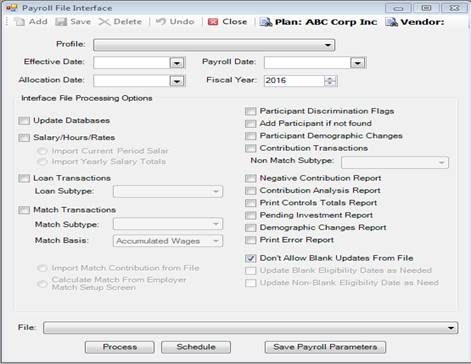
The Payroll File Interface screen is used to process a contribution/payroll file that has been sent from a sponsor or TPA. The contribution file must be configured to an existing Interface Profile in TSM prior to uploading the contribution file into TSM. Once the file has been uploaded (through File>Upload), you use the Payroll File screen to “process” the contribution file which will create contribution transactions in TSM. See the Profile Maintenance section for more information on how to create an Interface Profile.
How to access the Payroll File screen
Click the Interfaces menu, then click Payroll File. The Payroll File Interface screen appears.
How to use the Payroll File Interface screen
Once you have received a contribution file from the client and you’ve uploaded it through File>Upload, use the following to process that file in TSM.
1. Click Interfaces then Payroll File. The Payroll File Interface screen appears.
2. Use the drop down next to Profile to select the Interface Profile you want to use for this upload.
3. Enter the Effective Date for the contribution file.
4. Enter a Payroll Date. Typically, this is the actual pay date the employees received their paychecks.
5. Enter an Allocation Date.
6. Enter the Fiscal Year the contributions apply to for that contribution file. In most cases this is the current year, but may vary around the end/beginning of a fiscal year.
7. Click Update Databases if the file is ready to be loaded into TSM.
8. Click any of the following boxes that apply to the contribution file:
a. Salary/Hours/Rates
i. Choose either Import Current Period Salary or Import Yearly Salary Totals.
b. Loan Transactions
i. Choose the Loan Subtype, if applicable.
c. Match Transactions
i. Choose the Match Subtype, Match Basis, Import Match Contribution from File, or Calculate Match From Employer Match Setup Screen, if applicable.
d. Participant Discrimination Flags
e. Add Participant if not found
f. Participant Demographic Changes
g. Contribution Transactions
i. Choose the Non Match Subtype, if applicable.
h. Negative Contribution Report
i. Contribution Analysis Report
j. Print Controls Totals Report
k. Pending Investment Report
l. Demographic Changes Report
m. Print Error Report
n. Don’t Allow Blank Updates From File is automatically checked.
9. Click the drop down in the File: field and select the name of the contribution file you have uploaded through File>Upload.
10. Click the Process button to process the file, or click Schedule to schedule the creation of the contribution transactions for a future date.
Explanation of Fields
|
Field Name |
Field Description |
|
Profile |
The format of the contribution file you have uploaded. |
|
Effective Date |
The date the contributions will be traded. |
|
Payroll Date |
The date of the Plan’s payroll, which is typically the date the employees were actually paid. |
|
Allocation Date |
Typically the same as the effective date. |
|
Fiscal Year |
The fiscal year in which the contributions are effective. In most instances, this is the currently fiscal year, but may vary if you are processing the contribution file around the end of the fiscal year. |
|
Update Databases |
Only select this box if you have run all edits on the contribution file and you are ready for the file to be processed. |
|
Salary/Hours/Rates |
Select this box if the contribution file contains participant salary, hours worked or rates, and that data is normally housed in TSM for this Plan. |
|
Loan Transactions |
If the contribution file contains any loan payments that were withheld from a participant’s paycheck, and those loan payments are indicated on the contribution file, then select this box. |
|
Match Transactions |
Click this box if the contribution file contains match contributions from the employer. |
|
Add Participant if not found |
Check this box if there is a possibility that the contribution file contains a participant who has contributions, but has not yet been added to TSM. The contribution file must also contain indicative data (participant’s name, SSN, address, date of birth, etc), and if it does, then the participant will be added to TSM so that the contribution for that participant can be processed. |
|
Participant Demographic Changes |
This box can be checked if the contribution file contains participant indicative data (mailing address, date of hire, termination date, etc) that can/should be changed when the file is processed. |
|
Contribution Transactions |
Check this box assuming the contribution file contains employee’s contributions. |
|
Reports Available |
Various reports are available to view for the process, and you can choose from the provided list. |
|
Participant Discrimination Flags |
This option is not currently used. |